Frequently Asked Questions

IDrive® Mirror

IDrive® Mirror Desktop Application

If your question is not addressed below, please contact us through our support form and we'll get back to you shortly.

Backup

How do I sign in to the IDrive® Mirror desktop application?
What are the options available in IDrive® Mirror Tray?
How do I enable backup via IDrive® Mirror desktop application?
How do I backup my computers from the desktop interface?
How do I schedule a backup?
How do I backup an individual disk partition of my computer?

Restore

What is IDrive® Mirror and how does it work?
How do I perform a full system-image recovery?
How to create a WinRE restore media for system-image restore?
How do I restore specific disk volumes from the desktop interface?
How do I restore individual files and folders?
Is it possible to restore files while a backup is in progress?

Settings

Can I rename my device in IDrive® Mirror?
How do I perform a cleanup of the backed up data in my IDrive® Mirror account?
Can I modify the performance settings of IDrive® Mirror?
How do I configure IDrive® Mirror to ignore bad sectors during backup?

Activity Logs

How do I view activity logs on the IDrive® Mirror desktop application?

Do I need to install any storage device to backup my computer to IDrive® Mirror?

No. There is no requirement to install any additional / intermediary storage device to start using IDrive® Mirror.
After installing the backup agent, you can configure your computer to the Mirror account and enable backup for it. Mirror performs full-image backup, the first time, for the selected computer to the cloud.


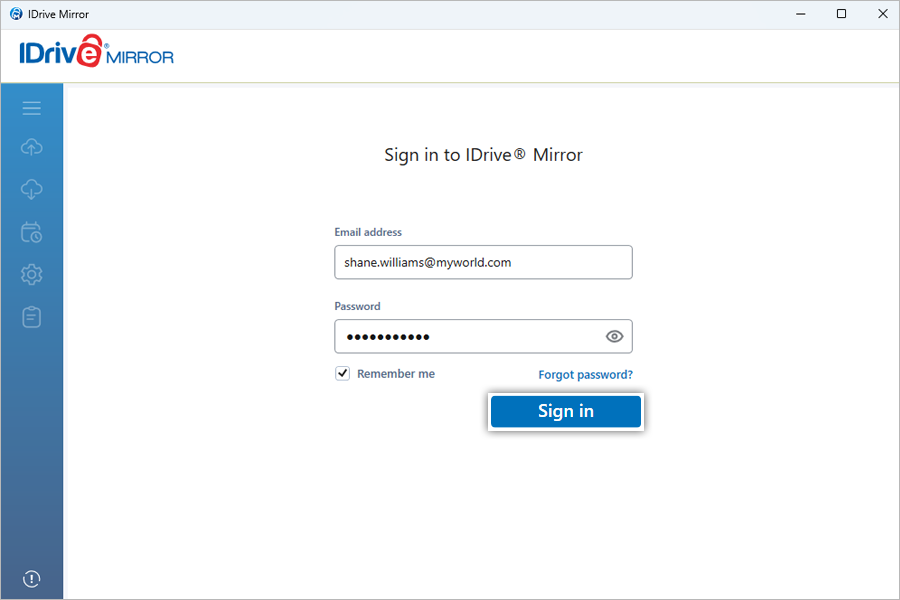
How do I sign in to the IDrive® Mirror desktop application?

If the desktop application is downloaded by logging in to your account via the web, the application will be automatically linked to your account. In this case, there is no need to sign in, and you can launch the application.

However, if the desktop application is downloaded without logging in to your account, you should log in with your account credentials on the desktop application.

On logging out from the desktop application, any ongoing and scheduled backups will be stopped.
Mirror
 

What are the options available in IDrive® Mirror Tray?

Once you install the desktop application, an IDrive® Mirror Tray icon will be created on your system tray. You can right-click the tray icon and select 'Launch IDrive Mirror' to open the desktop application.

The other options available in the tray icon are:
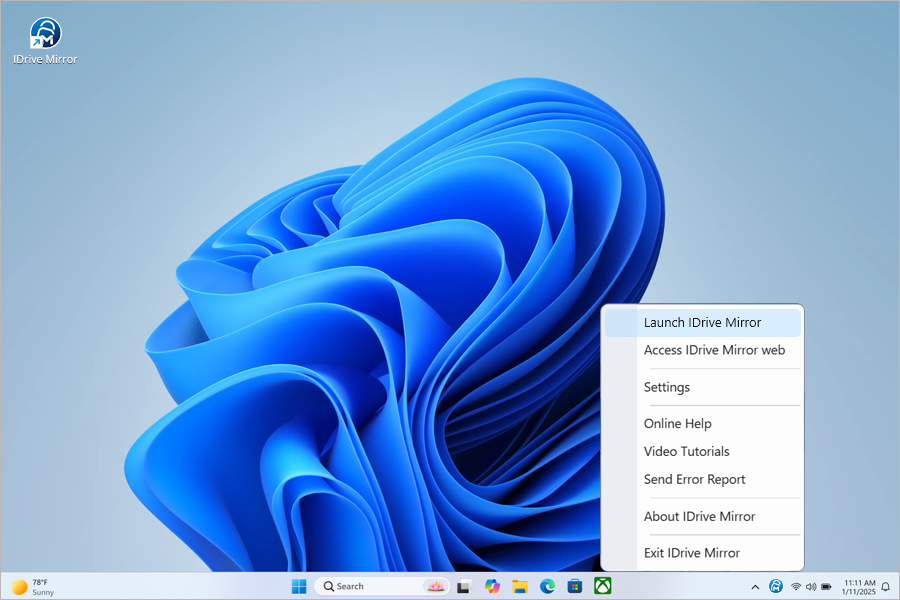
  1. Launch IDrive Mirror: Open the IDrive Mirror desktop application
  2. Access IDrive Mirror web: Open the IDrive Mirror web interface
  3. Settings: Navigate to IDrive Mirror desktop application settings
  4. Online Help: View help and how-to documentation for IDrive Mirror
  5. Video Tutorials: Watch guided videos to learn how to use IDrive Mirror effectively
  6. Send Error Report: Send your queries, suggestions, or feedback to support team
  7. About IDrive Mirror: View information about the application version number
  8. Exit IDrive Mirror: Exit the desktop application
Mirror
 

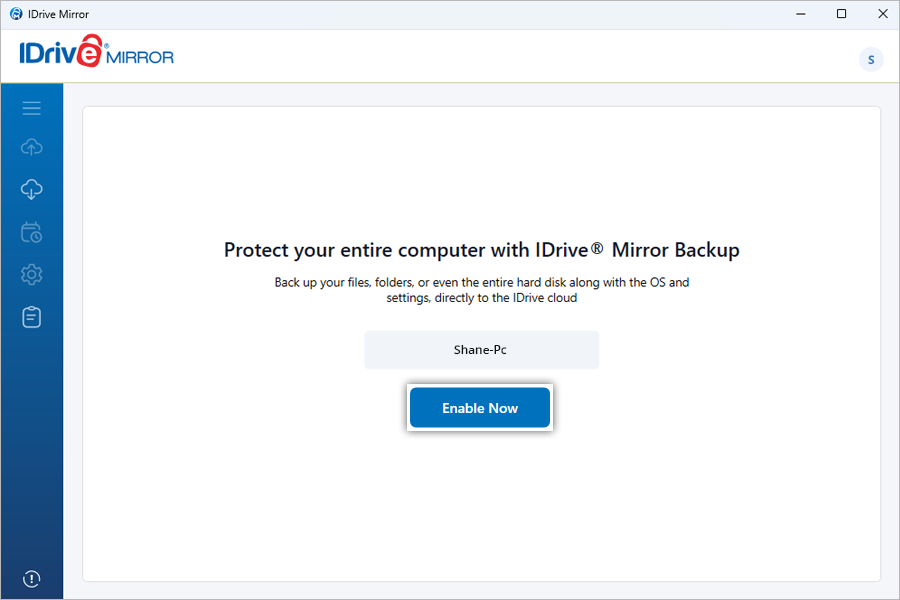
How do I enable backup via IDrive® Mirror desktop application?

To enable backup via the desktop application,

  1. Launch the IDrive Mirror desktop application and sign in to your account.
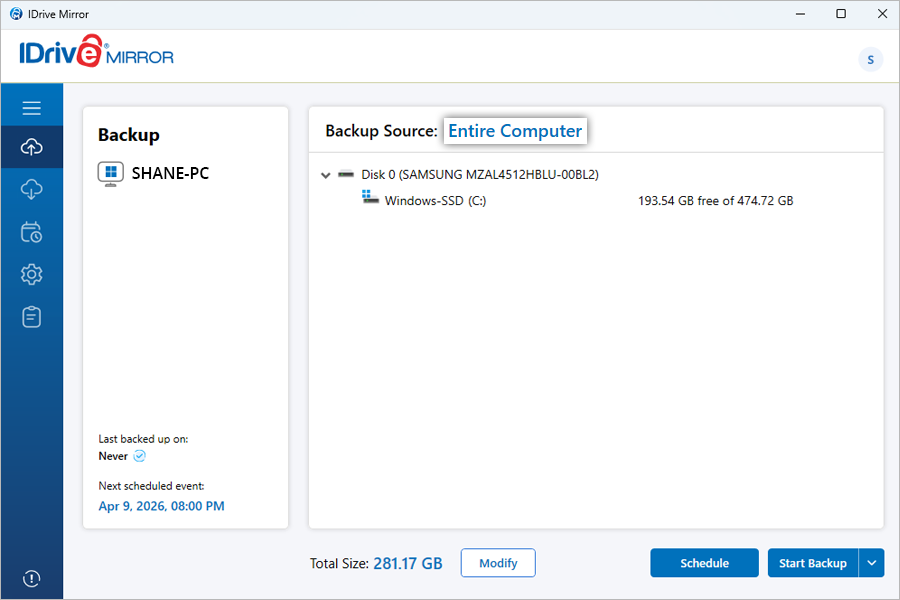
  2. Click 'Enable Now' in the 'Backup' tab on the desktop application interface.
    Mirror

Your 'Entire Computer' will be selected as the backup source by default.
Mirror
 

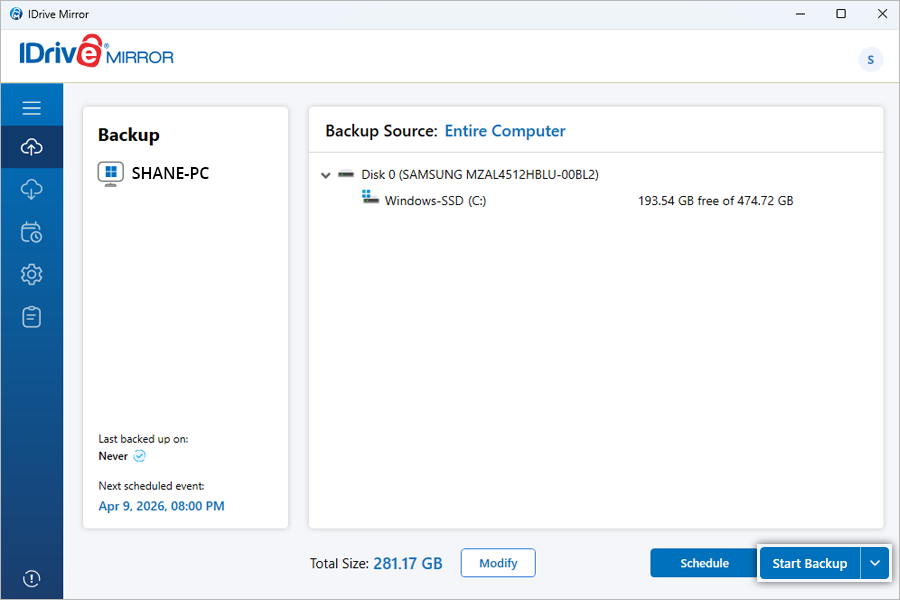
How do I backup my computers from the desktop interface?

To start an immediate full disk-image backup of your computer,

  1. Launch the IDrive Mirror desktop application and sign in to your account.
  2. Click 'Start Backup' in the 'Backup' tab.
    Mirror

A full image backup of your computer will be performed for the first time. The subsequent backups will be incremental.

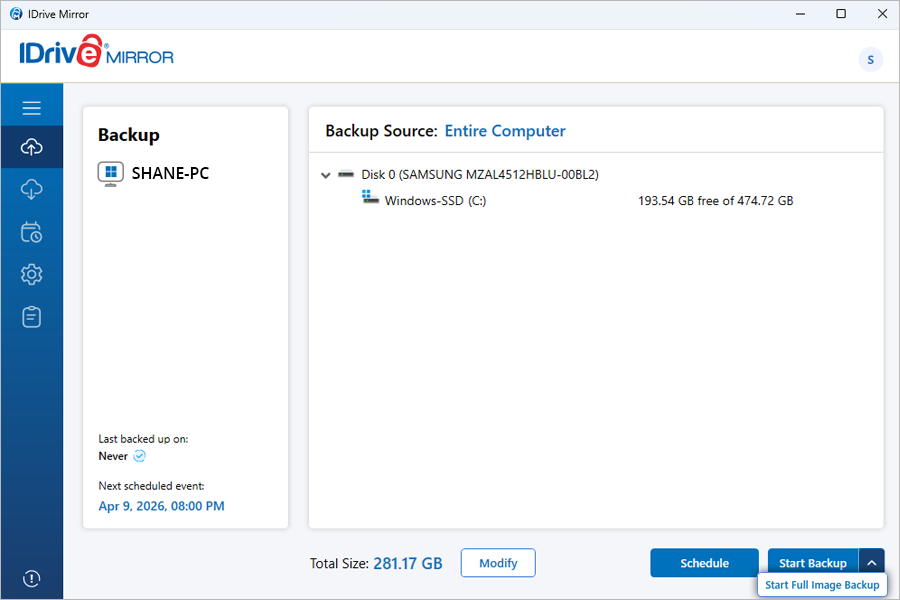
To perform a full disk-image backup of your computer at any time,

  1. Click Setting next to the 'Start Backup' button.
  2. Click 'Start Full Image Backup'.
    Mirror

The backup progress will be displayed on the screen. You can pause an ongoing backup by clicking 'Pause', or resume it by clicking 'Resume'. To stop the backup, click 'Stop'.

You can also schedule backups from the 'Scheduler' tab. Choose to perform backups on a daily basis or select the desired days for backup in a week or a month. You can even set an interval between consecutive backups and fix the backup start time.


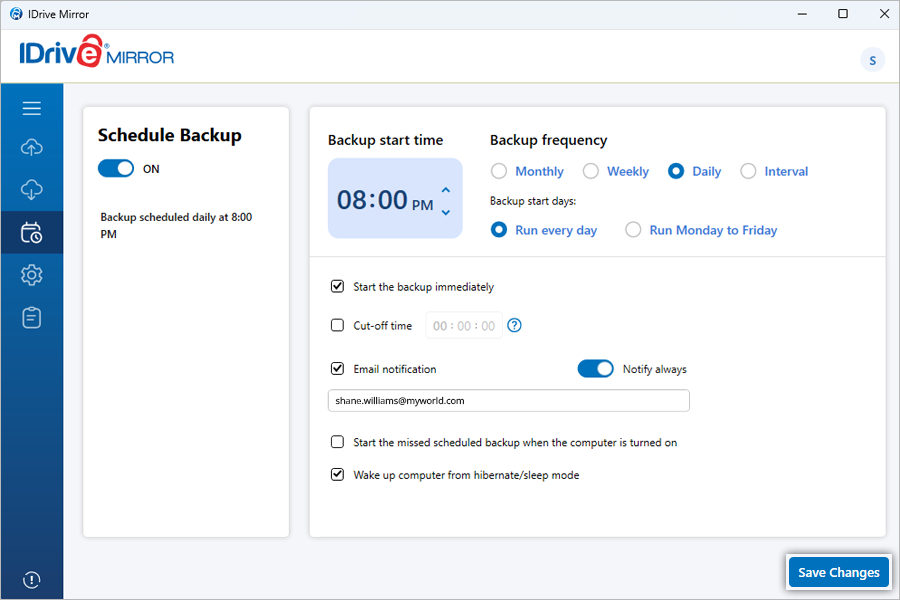
How do I schedule a backup?

To schedule backup for your computer,

  1. Launch the IDrive Mirror desktop application and sign in to your account.
  2. Click 'Scheduler'. The 'Backup Schedule' window will appear.
  3. Modify the following parameters as required:
    1. Backup start time: Specify the time at which your scheduled backup should start.
    2. Backup frequency:
      1. Monthly: Select this radio button to run your backup jobs every month and set the following:
        1. Select Months - Choose the required month(s) from the dropdown list.
        2. Specific Dates - Specify the day(s) of the selected month(s) on which you want the backup to run.
      2. Weekly: Select this radio button to run your backup jobs every week and choose the day(s) of the week on which you want the backup to run.
      3. Daily: Select this radio button to run your backup jobs every day and choose the backup start days from the following options:
        1. Run every day - Select this option to execute backups daily.
        2. Run Monday to Friday - Select this option to execute backups only on weekdays.
      4. Interval: Select this radio button to run backup jobs at regular time intervals.
        1. Set the desired interval between consecutive backups in the dropdown list. Backups will run repeatedly based on the selected interval.
    3. Start the backup immediately: Select this option to run a backup job immediately.
    4. Cut-off time: Set the time at which your scheduled backup should stop.
    5. Email notification: Select this option to get email updates on your scheduled backup status. Enter the email address on which you want to receive notifications.
    6. Notify always: Enable this toggle button to receive all backup notifications.
      1. Notify me on desktop: Receive notifications on the desktop regarding backup jobs.
      2. Start the missed scheduled backup when the computer is turned on: Select this option to resume a missed scheduled backup job due to the computer being switched off.
    7. Wake up the computer from hibernate/sleep mode: Wake up your computer from hibernate/sleep mode at the scheduled backup time.
  4. Click 'Save Changes'.
    Mirror

Backups will occur as per the saved schedule.

Note: You can turn off backup scheduling anytime by disabling the toggle button under 'Schedule Backup'. Use this option if you do not want to run or modify scheduled backups.


How do I backup an individual disk partition of my computer?

IDrive® Mirror selects your entire computer for backup to the cloud by default. If required you can modify the backup source to back up specific drives of your computer.

To backup a disk partition,

  1. Launch the IDrive Mirror desktop application and sign in to your account.
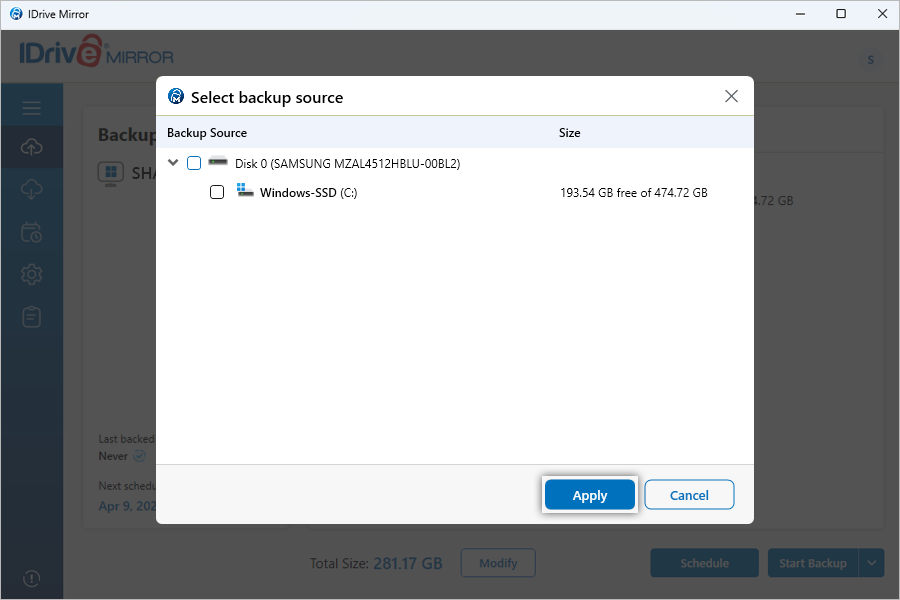
  2. Click 'Modify' in the 'Backup' tab. The 'Select backup source' popup will appear.
    By default, all the drives are selected for backup.
  3. Deselect the drives that you do not want to backup.
  4. Click 'Apply'.
    Mirror

Alternatively, click 'Entire Computer' next to 'Backup Source' to customize the backup source.


Note: If you deselect the drive where the operating system is installed, you will not be able to restore the entire computer.


How do I perform a full system-image recovery?

In order to perform a WinRE-based complete system restore of your Windows computer and server system from the image backups stored in IDrive® Mirror account, follow these steps:

The following prerequisites must be fulfilled to restore data using a WinRE recovery media:

  • The boot image architecture that is compatible with the destination computer architecture.
  • A target hard drive with sufficient storage space for performing the restore operation.
  • Minimum 1 GB RAM in the restore computer is needed to boot the ISO.
  • A bootable IDrive® Mirror WinRE ISO file or a USB bootable flash drive. Know more

To restore data using WinRE bootable USB drive,

  1. Connect the WinRE USB bootable flash drive to the computer.
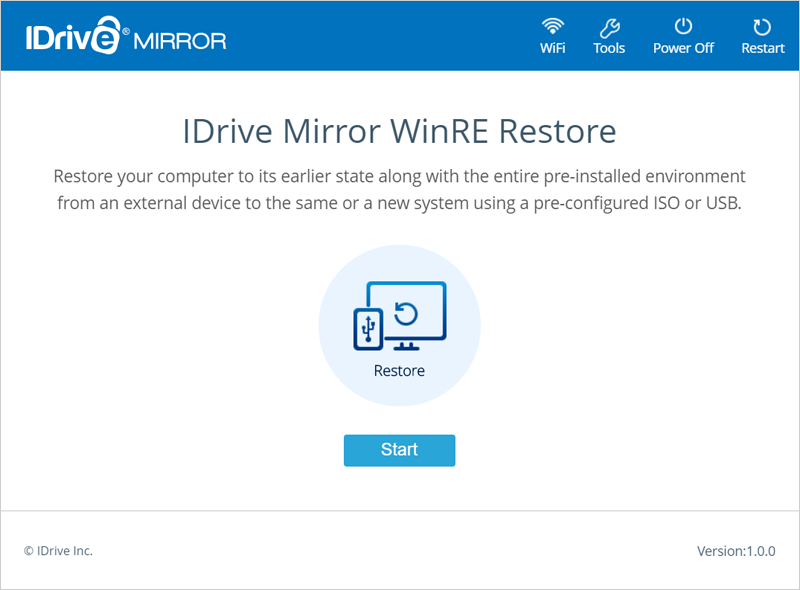
  2. Launch the IDrive® Mirror WinRE Restore setup.
  3. Choose the computer, volume, and backup version that you want to restore.
  4. Click 'Next'.
  5. Select the target drive you want to restore the selected data to and click 'Restore'.

    Note: This operation will overwrite the existing data on the target drive.

The restore progress will be displayed and you will receive a message once the restore is complete.

To restore data using WinRE bootable ISO file, attach the ISO file to a virtual machine, and launch the IDrive® Mirror WinRE Restore setup. Then follow the remaining steps for USB data restore.


How to create a WinRE restore media for system-image restore?

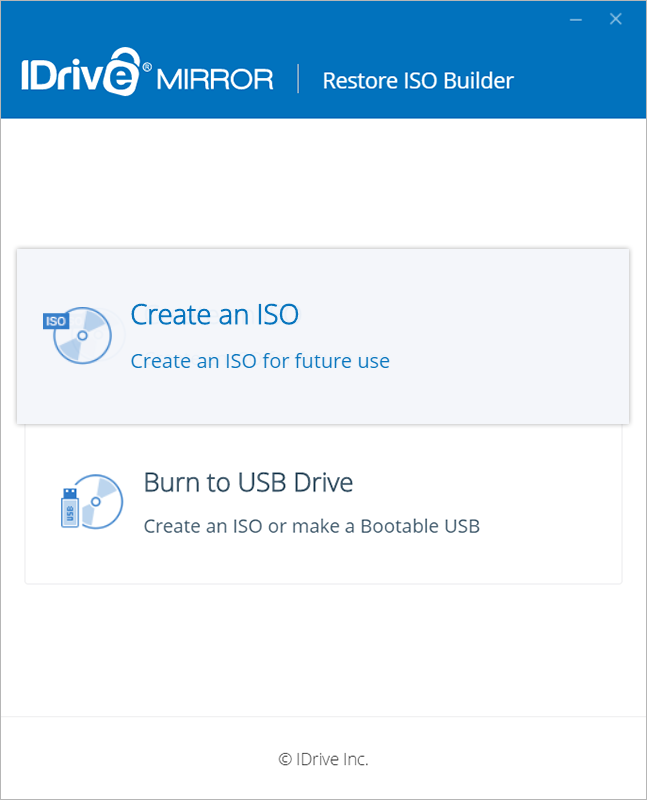
In order to initiate a WinRE-based system restore, you need a bootable USB or ISO. You can either download a generalized ISO for immediate use or create a USB or ISO for future use using the IDrive® Mirror Restore Media Builder app. You can use this bootable WinRE-based recovery media to boot up a Windows computer on which restore needs to be initiated.

To build a WinRE recovery media for future use,

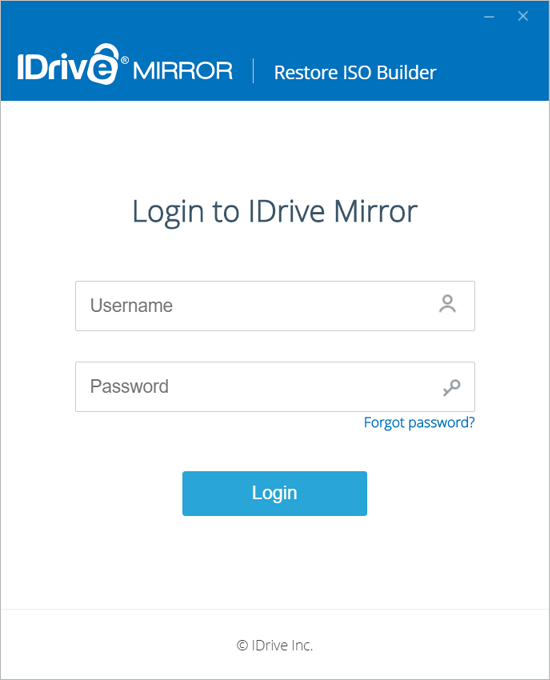
  1. Launch the IDrive® Mirror Restore Media Builder setup and login.
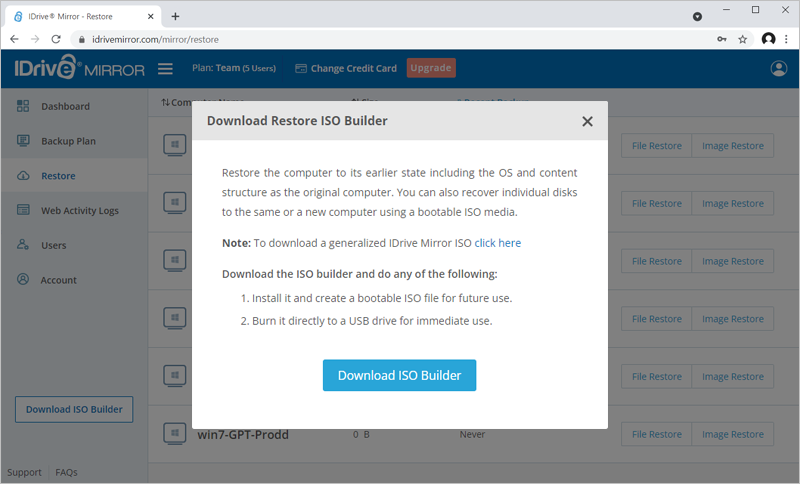
  2. Go to the 'Restore' tab.
  3. Click 'Download ISO Builder'. A popup window will appear.

To download a ready-built bootable ISO file for immediate system restore, click 'Click here'. A generalized IDrive® Mirror ISO will be downloaded. You can upload the ISO file directly to a virtual machine and launch the IDrive® Mirror WinRE Restore setup.

Alternatively, to build a bootable USB or ISO for future use, click 'Download ISO Builder' on the popup window. Once downloaded, install the IDrive® Mirror Restore Media Builder app on your computer.

To build a WinRE recovery media for future use,

  1. Launch the IDrive Mirror Restore Media Builder setup and login.
  2. Select 'Create an ISO'.
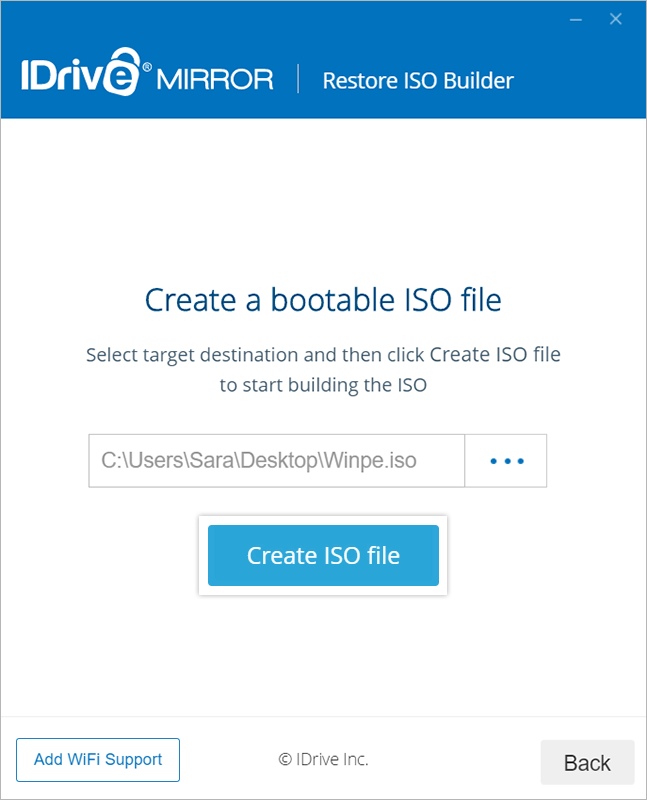
  3. Select the location where the ISO file needs to be saved from the 'Browse' button and click 'Create ISO file'.

The ISO build progress will be displayed on the page.

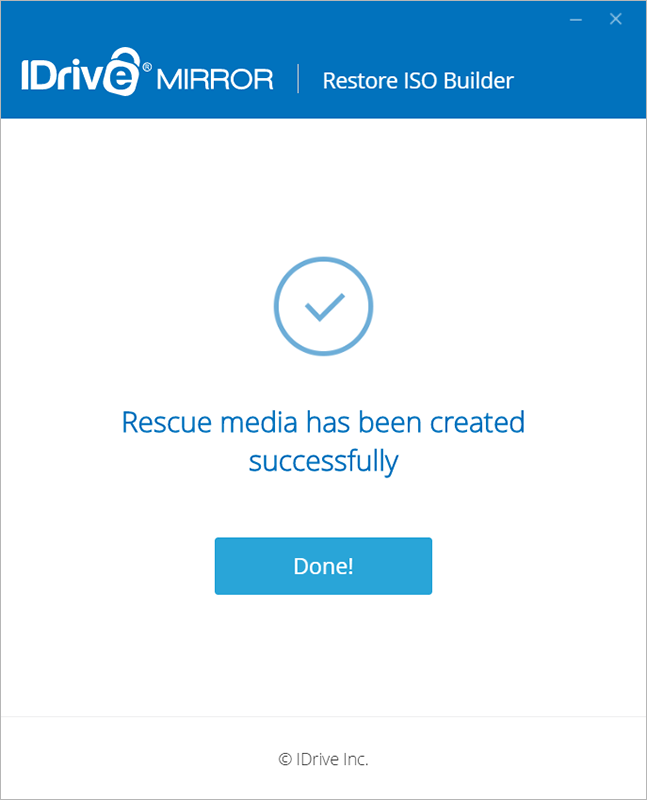
You will receive a success message once the rescue media is created.
To build a WinRE recovery media for immediate use,

  1. Connect the USB flash drive to the computer.
  2. Launch the IDrive® Mirror Restore Media Builder setup and login.
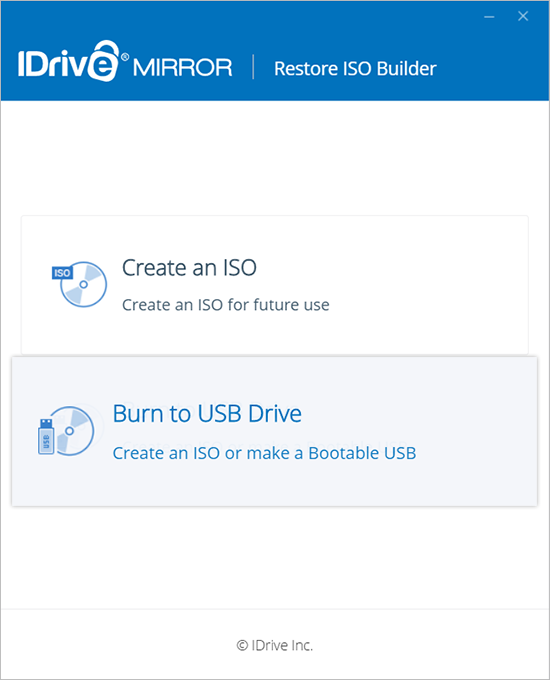
  3. Select 'Burn to USB drive'.
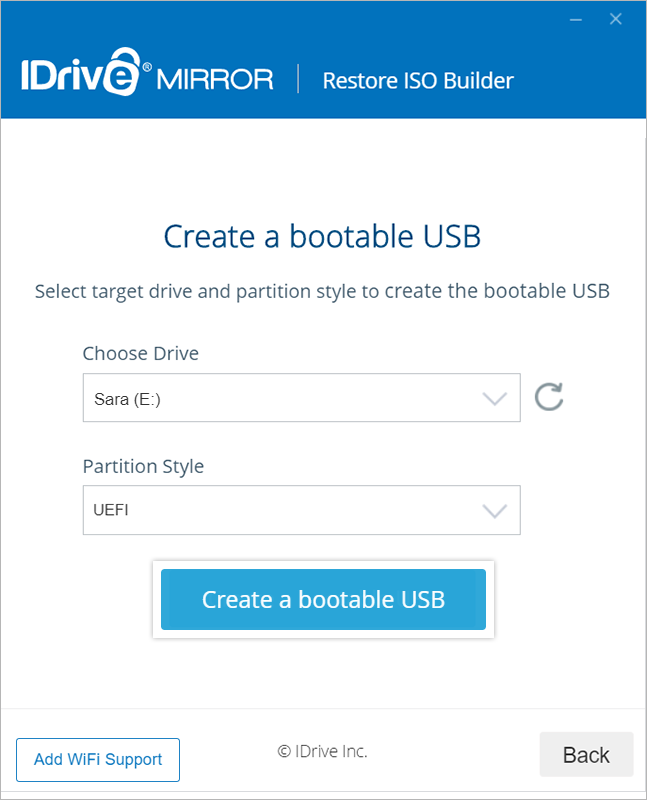
  4. Select the required USB device as the target drive and choose the partition style from the respective drop-downs.
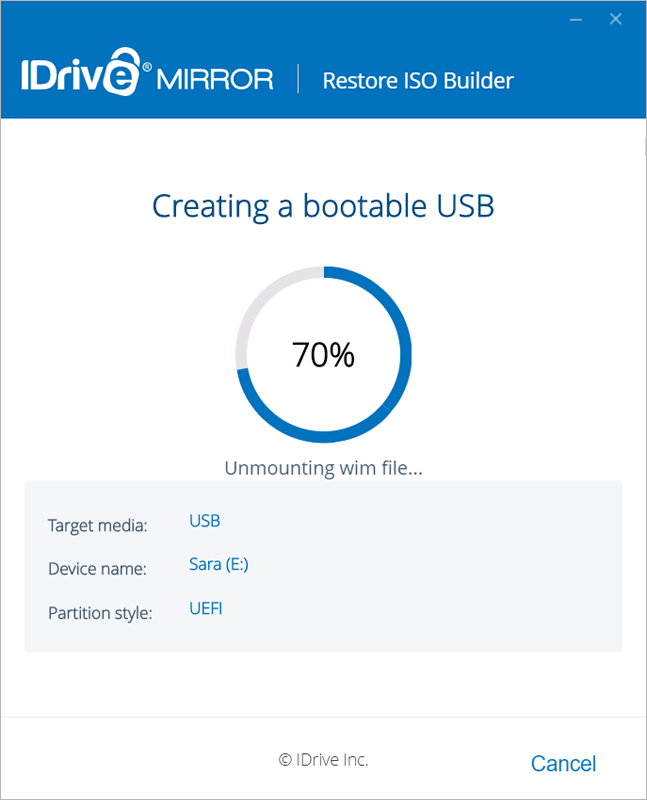
  5. Click 'Create a bootable USB' to create the boot device.

The bootable USB creation progress will be displayed on the screen.

You will be notified once the bootable USB device is successfully created along with further instructions to use the bootable device.

Note: If the setup is not able to find the .wim file, you will be prompted to download Windows ADK to complete building the ISO.


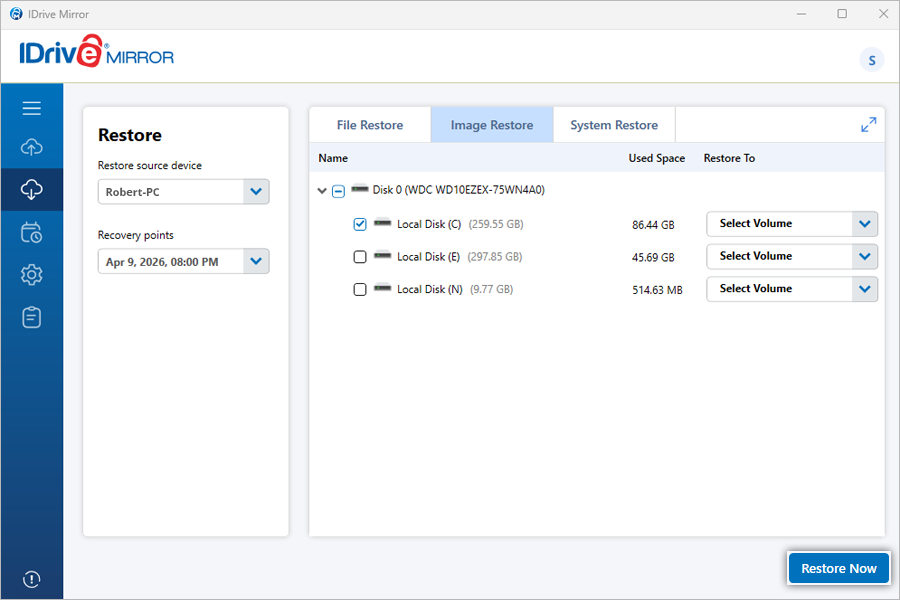
How do I restore specific disk volumes from the desktop interface?

To restore specific disk volumes from your IDrive® Mirror account,

  1. Launch the IDrive Mirror desktop application and sign in to your account.
  2. Go to the 'Restore' tab and click 'Image Restore'.
  3. Choose the required recovery point from the 'Recovery points' drop-down list.
  4. Select the required disk volume from the list appearing on the screen.
  5. Click 'Restore Now'.
    Mirror

Note: Volume restore cannot be performed on the location, where the operating system is installed on the computer.


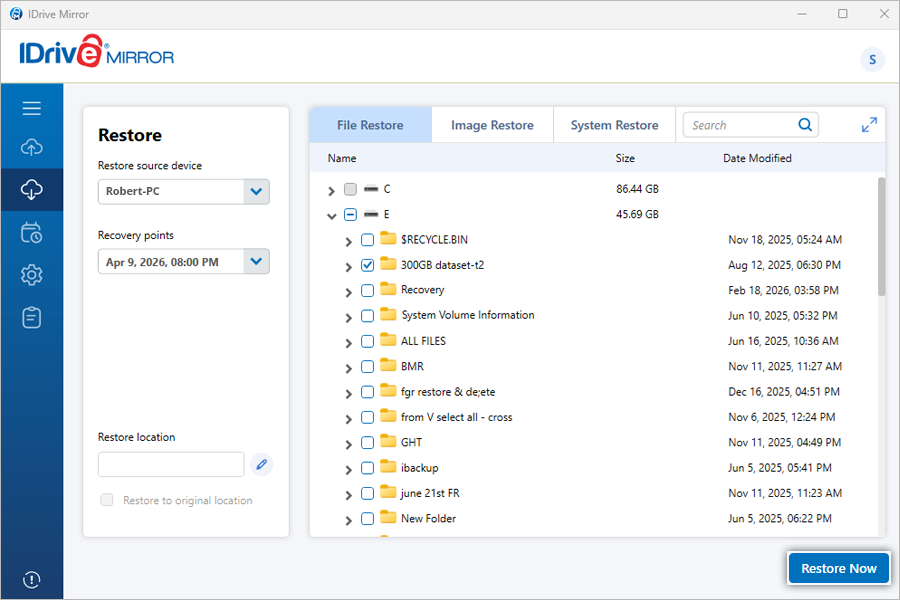
How do I restore individual files and folders?

To restore an individual file or folder from your Mirror account,

  1. Launch the IDrive Mirror desktop application and sign in to your account.
  2. Go to the 'Restore' tab and click 'File Restore'.
  3. Choose the required recovery point from the 'Recovery points' drop-down list.
  4. Select the volume containing the file or folder that you want to restore from the list appearing on the screen.
  5. Select the file or folder that you want to restore.
  6. Click 'Restore to original location' if you want to restore the file or folder to its original location on your system.

    Note:

    • To restore files to the original location the structure of the files/folders should be the same as your cloud backup.
    • While restoring to the original location your existing files will be overwritten with their corresponding latest version available in the cloud.
    • Mirror doesn't support 'Original Location Restore' for Operating System and application-related folders like 'Windows', 'Program Files' etc.
  7. Alternatively, choose any location on your computer by clicking IdriveMirror to restore the selected files.
  8. Click 'Restore Now'.
    Mirror
 

Is it possible to restore files while a backup is in progress?

Yes, you can restore files while a backup is in progress. This currently applies only to file restore, allowing you to restore files to the original location or a custom location without interrupting the backup.

Similarly, you can choose to perform a file restore and and then initiate a backup simultaneously.

To monitor the backup and restore progress, go to the respective 'Backup' and 'Restore' tabs and click 'View Details' in the progress bar.


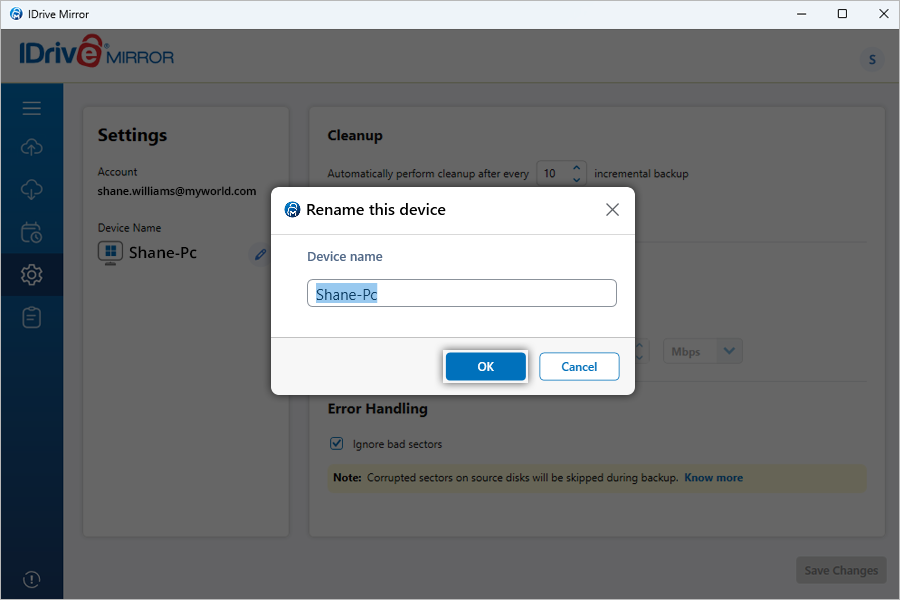
Can I rename my device in IDrive Mirror?

Yes, you can rename your device configured to IDrive Mirror.

To rename your device,

  1. Launch the IDrive Mirror desktop application and sign in to your account.
  2. Go to the 'Settings' tab.
  3. Click Setting next to your device name.
  4. Enter the new name in the device name field.
  5. Click 'OK'.
    Mirror
 

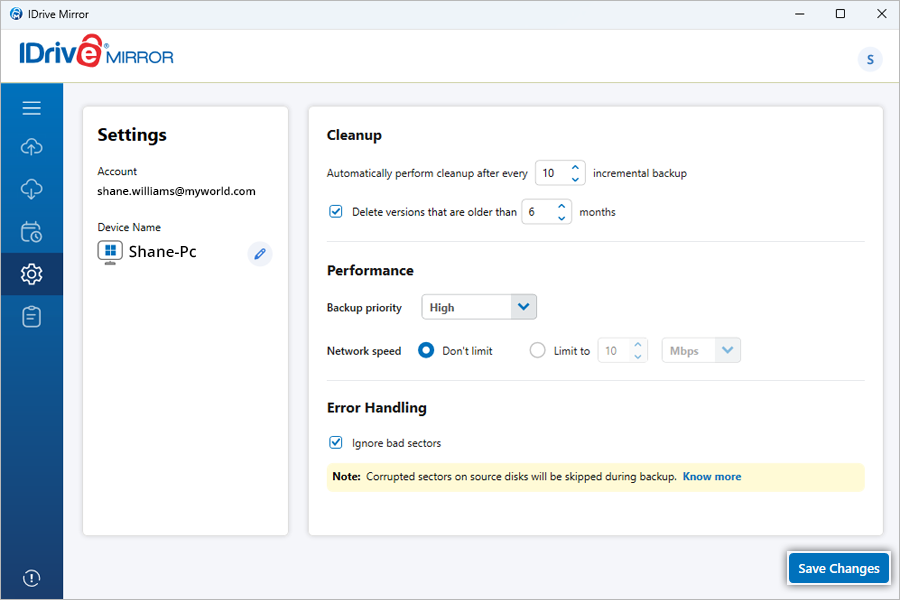
How do I perform a cleanup of the backed up data in my IDrive® Mirror account?

The data stored in your IDrive® Mirror account is cleaned up periodically based on the Cleanup settings defined by you.

To set cleanup settings,

  1. Launch the IDrive Mirror desktop application and sign in to your account.
  2. Go to the 'Settings' tab.
  3. Set the following options in the 'Cleanup' section:
    1. Automatically perform cleanup after every '-' incremental backup
    2. Delete versions that are older than '-' months
  4. Click 'Save Changes'.
    Mirror
 

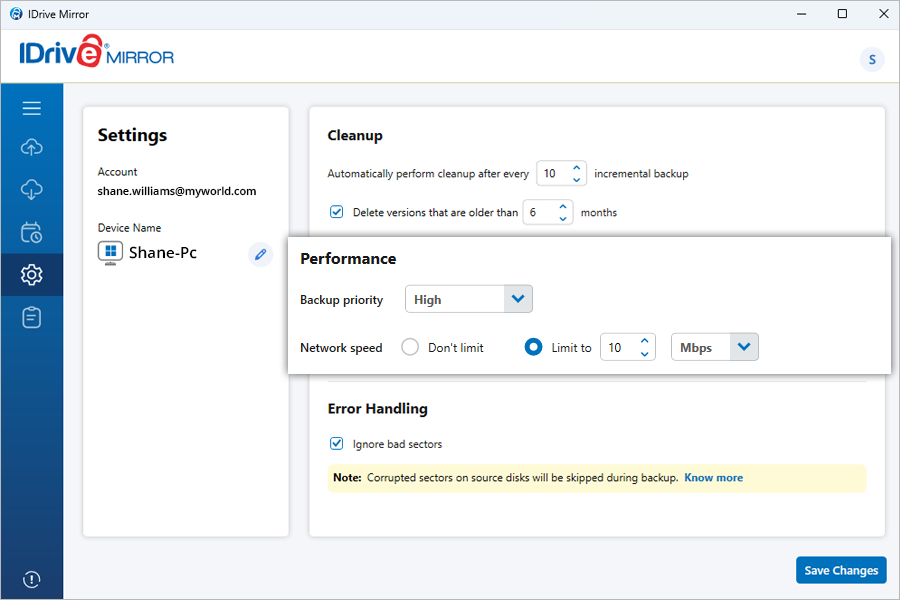
Can I modify the performance settings of IDrive® Mirror?

Yes, you can define performance parameters such as backup priority and network speed for your IDrive® Mirror account.

To edit the settings,

  1. Launch the IDrive Mirror desktop application and sign in to your account.
  2. Go to the 'Settings' tab.
  3. Set the following options in the 'Performance' section:
    1. Backup priority (High priority recommended for ensuring fast backup).
    2. Network Speed (Unrestricted network access is recommended for ensuring fast backup)
      1. Don't Limit
      2. Limit To
    Mirror
  4. Click 'Save Changes'.
 

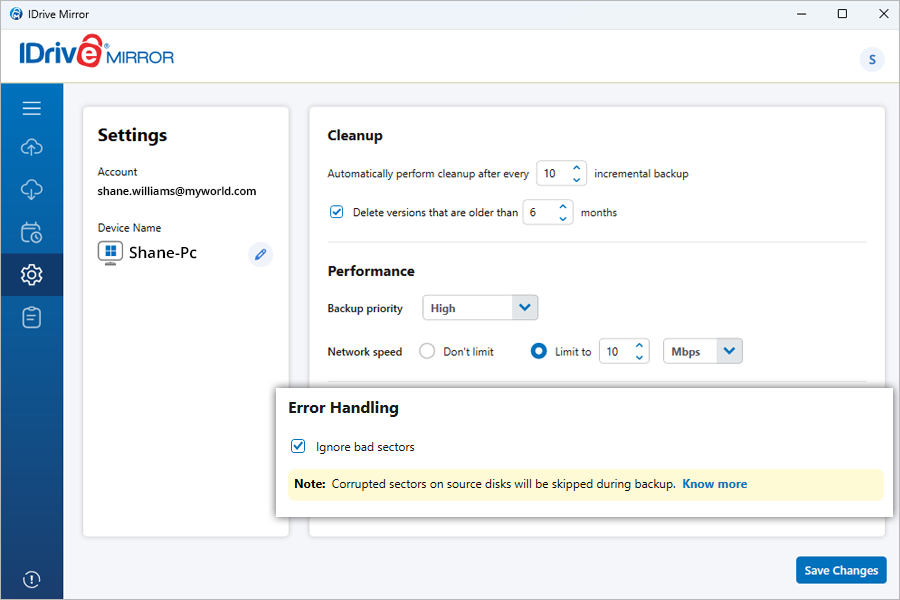
How do I configure IDrive® Mirror to ignore bad sectors during backup?

By default, IDrive Mirror skips corrupted sectors on source disks during backup. Even if a disk with bad sectors is restored, those sectors will appear as empty sectors. Files that were stored in these sectors will not be readable.

To modify this setting,

  1. Launch the IDrive Mirror desktop application and sign in to your account.
  2. Go to the 'Settings' tab.
  3. Under the 'Error Handling' section, deselect the 'Ignore bad sectors' checkbox.
    Mirror
  4. Click 'Save Changes'.

Note: Once this option is disabled, IDrive Mirror will not skip corrupted sectors during backup, and the backup operation may fail if bad sectors are encountered.


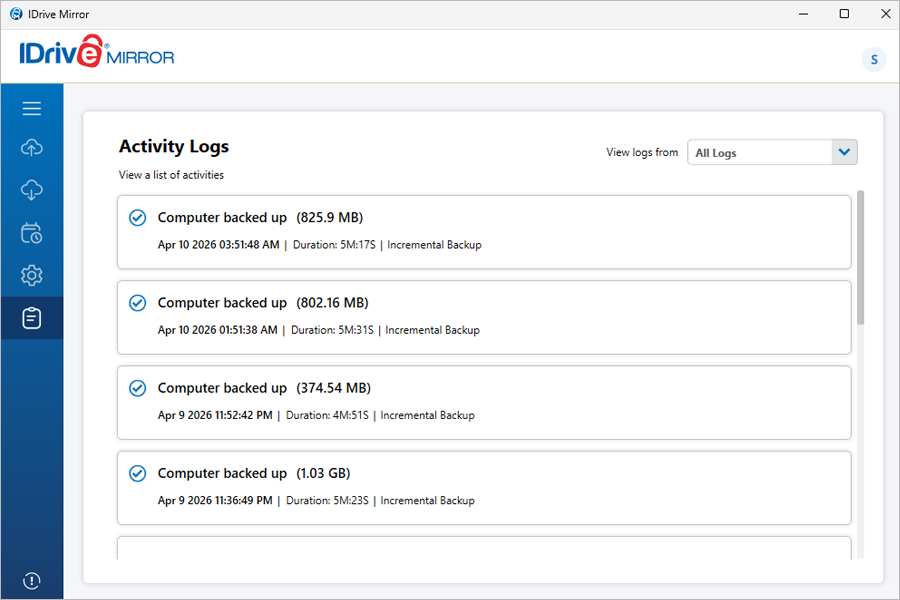
How do I view activity logs on the IDrive® Mirror desktop application?

To view a list of activity logs,

  1. Launch the IDrive Mirror desktop application and sign in to your account.
  2. Go to the 'Activity Logs' tab.
  3. From the 'View logs from' dropdown, select 'All Logs', 'Today', 'Current Week', or 'Past Week', depending on the time range you want to review.
    Mirror

Note: A list of the activities in your account for the selected time range will be displayed.


1-818-485-4333